
How to Export Revit to IFC: Settings Explained
Wondering how to export IFC from Revit and which settings matter? This guide explains the Revit IFC export settings and shows how to export views to IFC with the Autodesk IFC exporter, using the free SnapSheets plugin. It follows the video on this page, recorded in Revit 2026.
Watch on YouTube · 1:55 min · Revit 2026 · Updated Nov 2026
Guide
Export Revit to IFC, Step by Step
Six steps from the open model to a finished IFC file.
Before you start
- Revit 2019–2027 with your project open.
- The free SnapSheets plugin. Download SnapSheets and run the installer – no admin rights are needed.
- The IFC version your project asks for, usually written in the BIM execution plan or requested by the receiving party.
- Open SnapSheets
Start Revit, open your project and click SnapSheets on the Bimforyou tab (Export panel). The plugin opens in the Select step with a list of all sheets and views in the model.
- Select the view
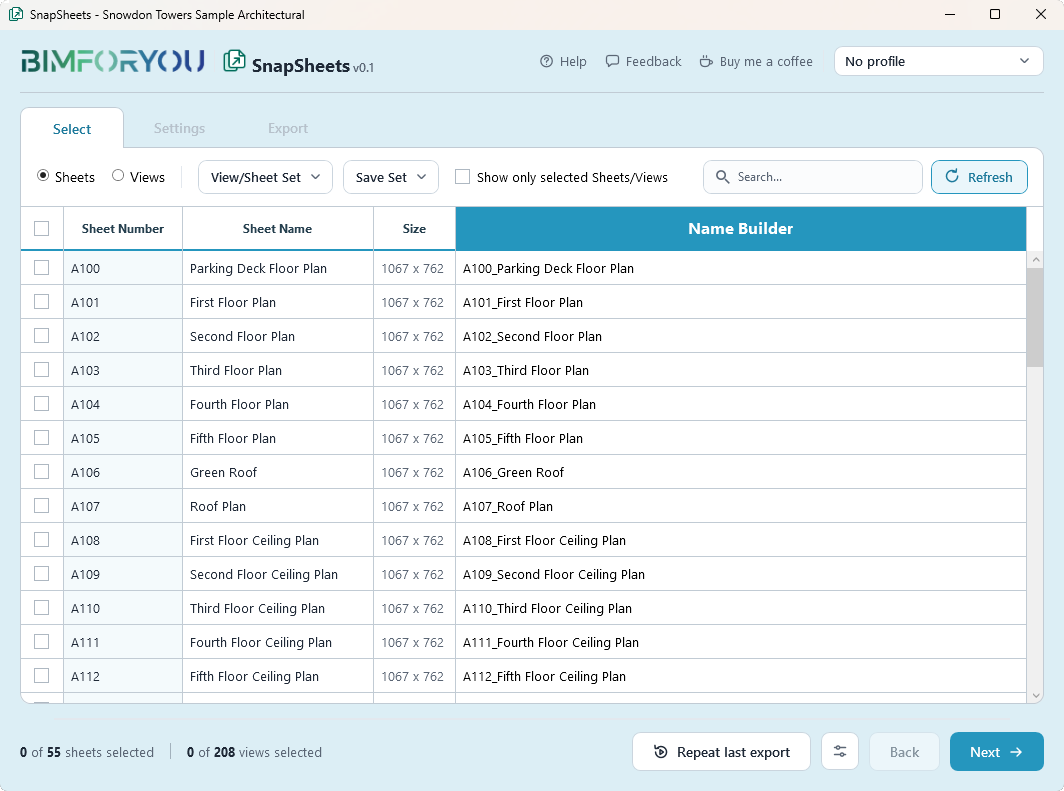
Tick the view you want to export. For IFC this is usually a 3D view of the model. Use the search field to find it quickly.
- Build the file name
Open the Name Builder and compose the file name from Revit parameters so the IFC files are named the way your project asks.
- Choose IFC and the IFC version
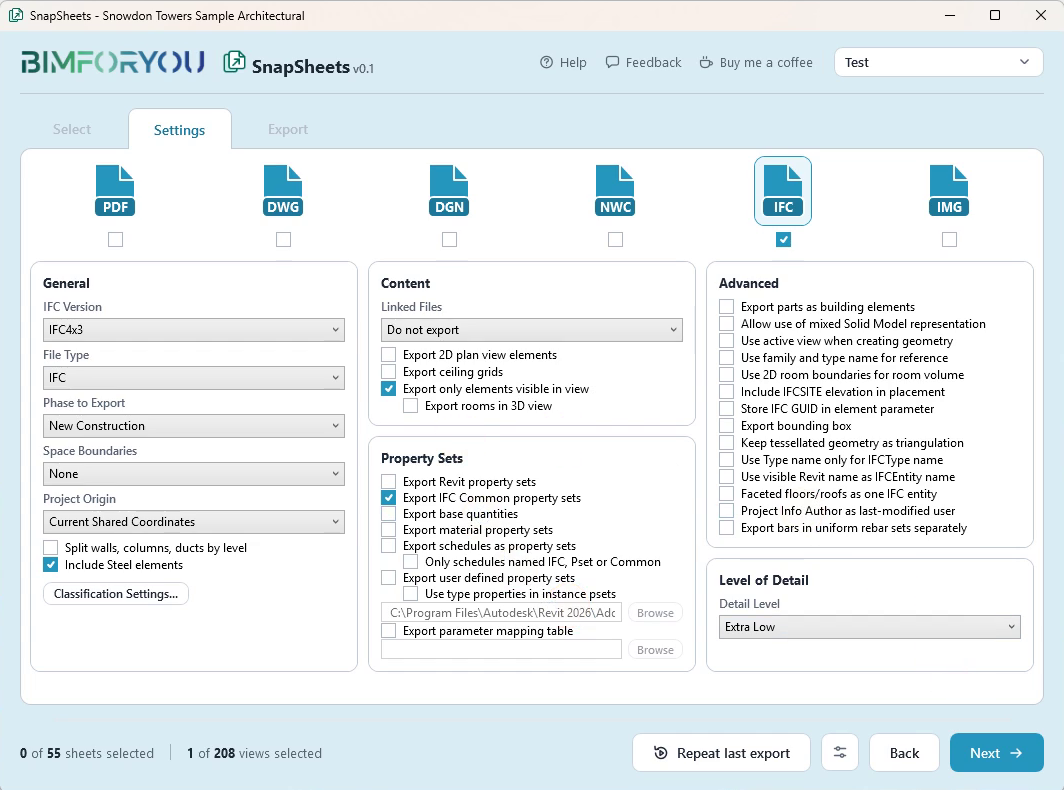
In Settings tick IFC and choose the IFC version, for example IFC 2x3 Coordination View 2.0 or IFC4 Reference View, and the file type.
- Set the content
Choose the project origin, how linked files are exported, which property sets are included and the level of detail. The advanced options cover geometry, naming and GUID handling.
- Export and open the file
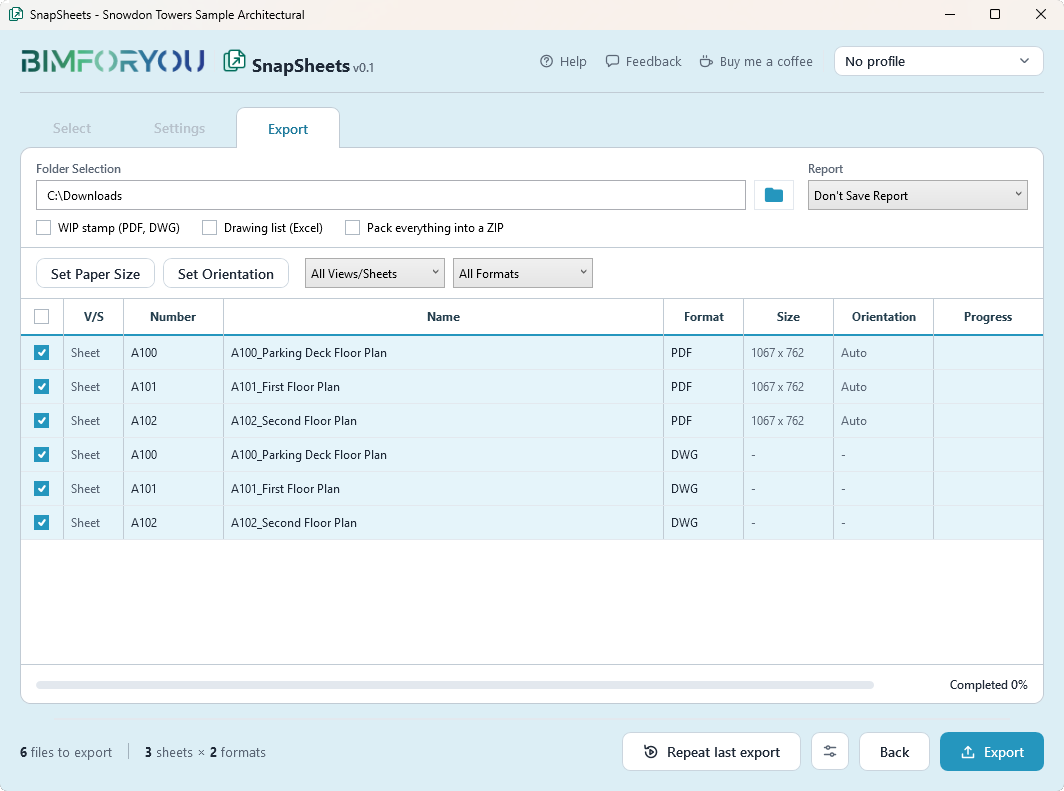
Pick the folder in the Export step and click Export. Open the IFC file in a viewer to check it.
How to export IFC from Revit
Select the view, tick IFC in Settings, choose the IFC version and the options you need, pick a folder and click Export. SnapSheets drives the Autodesk IFC exporter built into Revit, so the result matches what you would get from Revit’s own IFC dialog. The difference is that you set it up once, save it as a profile and repeat it without clicking through the dialog again.
Revit IFC export settings explained
- IFC version: the schema of the file, for example IFC 2x3 Coordination View 2.0 or IFC4 Reference View. Use the one your project asks for.
- Project origin: which coordinate system the model is placed in, such as shared coordinates, the project base point or the survey point.
- Linked files: skip links, export them as separate IFC files or merge them into the same IFC project or site.
- Property sets: which Revit and IFC property sets, base quantities and schedules go into the file.
- Level of detail: how finely the geometry is exported. Higher detail means bigger files.
Does Revit support IFC?
Yes. Revit exports IFC with the Autodesk IFC exporter and also imports and links IFC files. SnapSheets uses the same exporter for the export.
Export IFC and other formats together
If the model also goes to Navisworks or the drawings go to the client, tick the other formats in the same run. Read how to export Revit to Navisworks or export several formats at once.
SnapSheets
What SnapSheets Adds
The tools around the IFC export that save time when you export the model again and again.
FAQ
Questions and Answers
Which IFC version should I choose?
Use the version your BIM execution plan or the receiving party asks for. IFC 2x3 Coordination View 2.0 and IFC4 Reference View are common choices for coordination.
Does SnapSheets use the Autodesk IFC exporter?
Yes. SnapSheets drives Revit’s own IFC exporter, so the settings and results match what you know from Revit.
Can I export linked models to IFC?
Yes. The Linked Files option lets you skip links, export them as separate IFCs or include them in the same IFC project or site.
Can I save my IFC settings?
Yes. Save the whole export setup as a profile and load it again for the next project.
Can Revit export to IFC?
Yes. Revit has a built-in IFC exporter and SnapSheets uses it. You can choose the IFC version, the property sets and the level of detail.
How do I export a Revit model as an IFC file?
Open SnapSheets, tick the view, tick IFC in Settings, set the IFC version and options, pick a folder and click Export.
Is SnapSheets free?
Yes, including for commercial work. There is no account, no licence key and no export limit.
More guides
More Revit Export Guides
How to Export Revit 3D Views to FBX
One FBX file per 3D view, with level of detail options.
Read guide →How to Export Revit to Blender with Textures
One glTF file with the textures inside, ready for Blender.
Read guide →How to Export Revit to 3ds Max with Textures
OBJ with a texture folder and bump maps set up for 3ds Max.
Read guide →How to Export Revit Views and Sheets to Images
Set the pixel size and image quality for many sheets at once.
Read guide →Revit Export Formats: PDF, DWG and More at Once
Export the same sheets as PDF, DWG and DXF in one run.
Read guide →How to Export PDF from Revit: Many Sheets at Once
Combine sheets into one PDF or export a file per sheet.
Read guide →How to Export Revit to DWG (AutoCAD)
Use your DWG export setups and keep linked models as external references.
Read guide →How to Export Revit to Navisworks (NWC)
Export 3D views or the whole project to NWC for Navisworks.
Read guide →
SnapSheets: Free Revit Batch Export Plugin
All features, every export format and the free download in one place.
About SnapSheets →