
How to Export Revit to Blender with Textures
Export a Revit 3D view or the whole model as one glTF file with its materials and textures inside, and open it in Blender without relinking missing textures. This guide follows the video on this page, recorded in Revit 2026 and Blender with the free SnapSheets plugin.
Watch on YouTube · 1:57 min · Revit 2026 · Updated Nov 2026
Guide
Export Revit to Blender, Step by Step
Six steps from the open Revit model to the textured model in Blender.
Before you start
- Revit 2019–2027 with a 3D view of the model.
- Blender. The glTF importer is built in, nothing to install.
- The free SnapSheets plugin. Download SnapSheets and run the installer – no admin rights are needed.
- Open SnapSheets
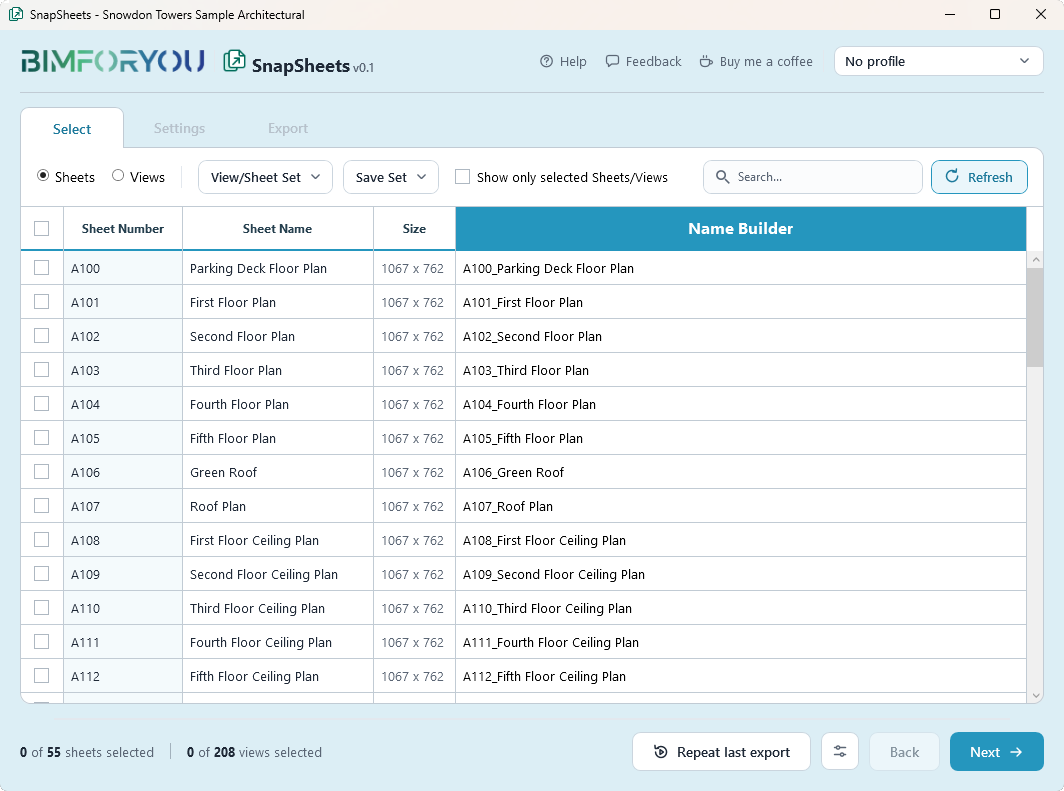
Start Revit, open your project and click SnapSheets on the Bimforyou tab (Export panel). The plugin opens in the Select step with a list of all sheets and views in the model.
- Select the 3D view
Switch the list to Views and tick the 3D view you want to export. With Active view SnapSheets exports what is visible in that view, so hide what you do not need first, for example with Visibility/Graphics (VV) or a section box.
- Build the file name
Open the Name Builder and compose the file name from Revit parameters, for example the project number and the view name.
- Choose 3D and glTF
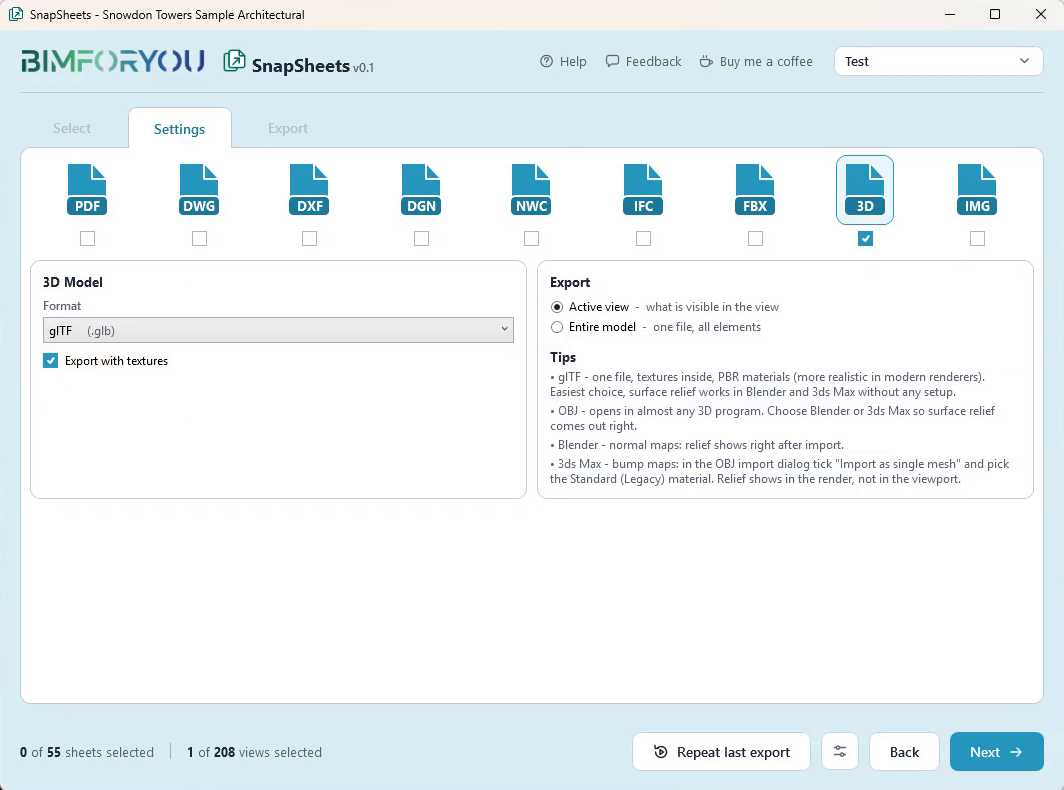
In Settings tick 3D, choose the format glTF (.glb) and keep Export with textures ticked. Choose Active view for what is visible in the view, or Entire model for the whole model with its loaded linked models in one file.
- Export the model
Pick the folder in the Export step and click Export. You get one .glb file with the textures inside, so there is no texture folder to keep next to it.
- Import into Blender
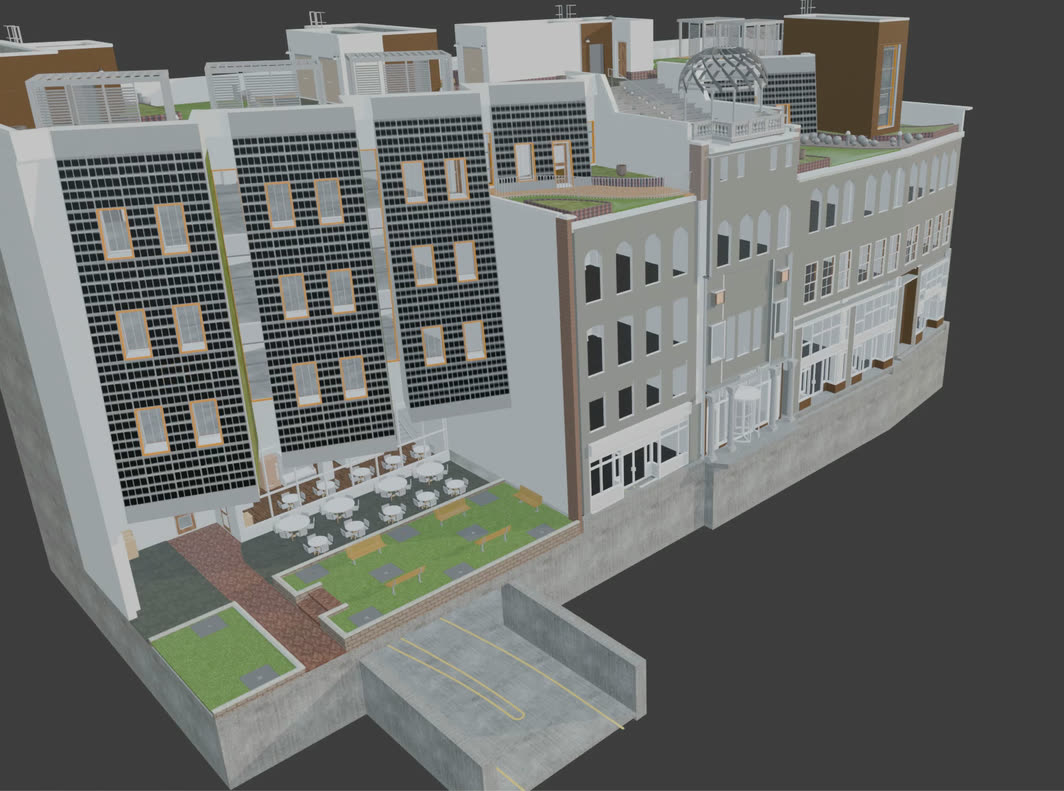
In Blender choose File → Import → glTF 2.0 (.glb/.gltf) and open the file. Switch the viewport to Material Preview to see the textures. No other settings are needed.
Why Revit textures go missing in Blender
The usual route from Revit to Blender is an FBX file. Blender often opens it without the Revit textures, so the materials have to be found and connected again by hand. glTF stores the geometry, the materials and the texture images in one .glb file, so Blender reads everything in one import.
glTF or OBJ for Blender?
glTF is the easiest choice: one file, textures inside and PBR materials that look right in Blender’s renderers. OBJ also works: it writes an .obj and an .mtl file with a folder of textures next to them. For Blender choose Blender – normal maps in the settings, so the surface relief shows straight after the import.
What comes across from Revit
The colour, scale, rotation and tint of each texture, transparency for glass and the surface relief. The model is written in metres, and Blender turns it upright on import, so it sits on the ground as in Revit.
Active view or entire model
Active view exports what you see in the selected 3D view, which is the quickest way to leave out furniture, a section of the building or the site. Entire model exports the whole model with its loaded linked models in one file, whatever the view shows.
SnapSheets
What SnapSheets Adds
Revit has no glTF exporter of its own. These are the tools SnapSheets adds around the 3D export.
FAQ
Questions and Answers
Can I export a Revit model to Blender with textures?
Yes. SnapSheets exports a 3D view or the whole model as glTF with the textures inside the file. Blender imports it with File → Import → glTF 2.0.
Which format is best for Revit to Blender?
glTF (.glb). It is one file with the textures and PBR materials inside and needs no settings in Blender. OBJ works too, with the textures in a folder next to the model.
Why are my textures missing when I import a Revit FBX into Blender?
The FBX export from Revit often reaches Blender without its textures, so they have to be connected again by hand. A glTF file from SnapSheets carries the textures inside.
Does Revit export glTF?
Revit has no glTF exporter of its own. SnapSheets adds glTF and OBJ export with textures for Revit 2019–2027.
Are linked models included?
Yes, with Entire model. It exports the whole model with its loaded linked models in one file. Active view exports what is visible in the selected 3D view.
Is SnapSheets free?
Yes, including for commercial work. There is no account, no licence key and no export limit.
More guides
More Revit Export Guides
How to Export Revit to Navisworks (NWC)
Export 3D views or the whole project to NWC for Navisworks.
Read guide →How to Export Revit 3D Views to FBX
One FBX file per 3D view, with level of detail options.
Read guide →How to Export Revit to 3ds Max with Textures
OBJ with a texture folder and bump maps set up for 3ds Max.
Read guide →How to Export Revit Views and Sheets to Images
Set the pixel size and image quality for many sheets at once.
Read guide →Revit Export Formats: PDF, DWG and More at Once
Export the same sheets as PDF, DWG and DXF in one run.
Read guide →How to Export PDF from Revit: Many Sheets at Once
Combine sheets into one PDF or export a file per sheet.
Read guide →How to Export Revit to DWG (AutoCAD)
Use your DWG export setups and keep linked models as external references.
Read guide →How to Export Revit to IFC: Settings Explained
Choose the IFC version, the property sets and the level of detail.
Read guide →
SnapSheets: Free Revit Batch Export Plugin
All features, every export format and the free download in one place.
About SnapSheets →